


Wednesday, November 4, 2009
Running on 'Full': Marathon 1.0.1.3
Posted by Don Tolson in "Pocket PC Software" @ 08:30 AM
Taking it out for a Run...
Once you have things configured the way you want, it's time to take it out for a spin. After you start the application, it will immediately activate the GPS receiver and attempt to get a lock at your current location. It notifies you of this via the left soft key at the bottom of the screen changing from 'No Signal' to 'Start'. When you're ready to get moving, tap on Start. From there, Marathon keeps track of your current position and displays your speed, distance and relative position to that point. Although we used it primarily for walks, I also tested on bike and even vehicle speeds (around the city -- I haven't tried it on extended highway or autobahn speeds :-))
The displayed mapping only gives you a relative picture of the track you've covered. For the purposes of training for that next race or just setting personal goals though, it's perfect. If you do want to lay down the sprint information on a map (so you can where you were...), you can do this by saving the sprint information, then exporting the data (Menu/File/Export) in either GPX/KML format.
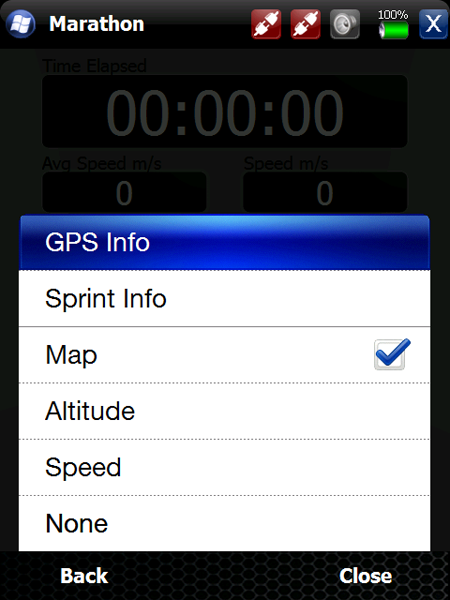
Figure 15: The View menu lets you look at how the GPS is performing, results from your last sprint, and select what's shown at the bottom of the main screen.
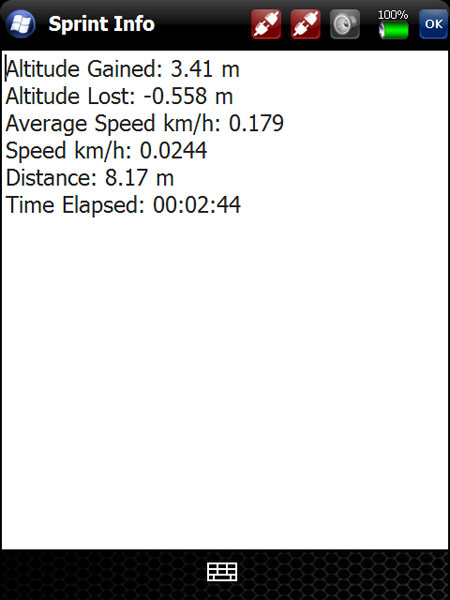
Figure 16: Here's an example of the sprint information provided by Marathon. A Sprint is defined as the distance/time traveled between tapping the Start button in the lower left of the Main screen, and subsequently tapping it again to Stop the sprint. Unfortunately, there's no way to pause the measurements if you stop for a rest or a chat on your travels.
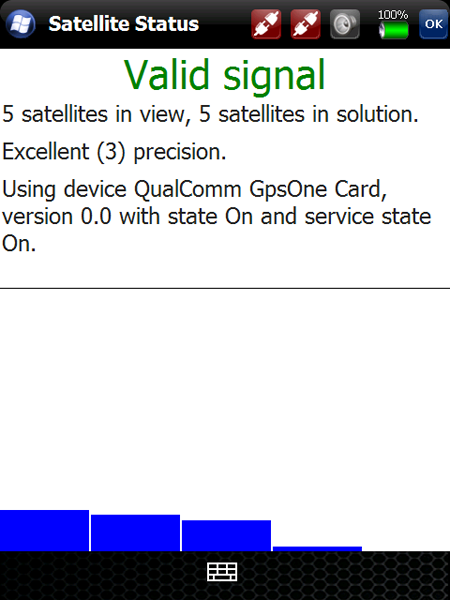
Figure 17: The GPS View screen. The bars at the bottom show the relative signal strengths at each of the satellites being used to determine the current position.
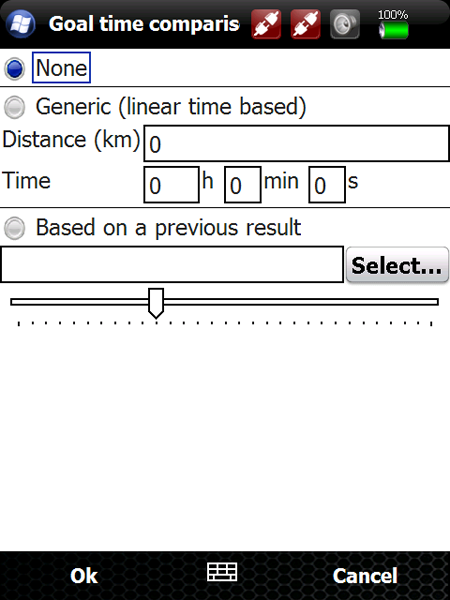
Figure 18: You can use this screen to establish a goal time and distance for your sprints, either from one you input, or from a previous result. The slider along the bottom allows you to vary a previously recorded result by between 50 and 200%.






