


Thursday, August 20, 2009
No Job for Amateurs - HTC's Touch Pro2 Reviewed
Posted by Doug Raeburn in "Pocket PC Hardware" @ 07:00 AM
TouchFlo 3D continued
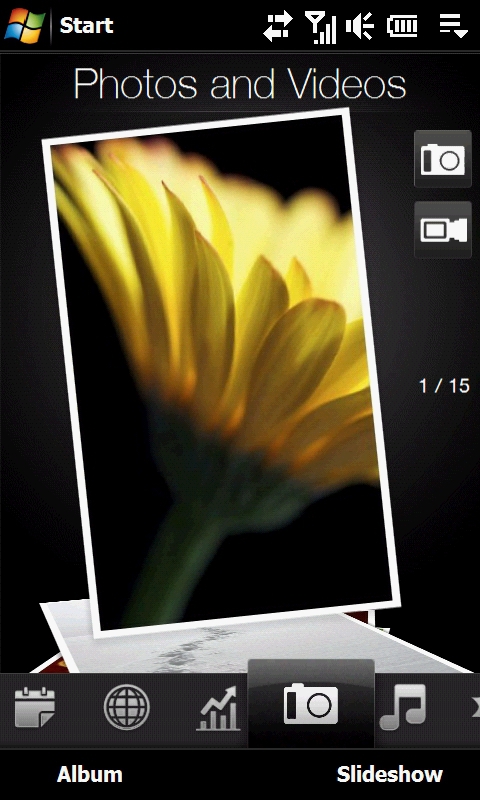
Figure 22: The Photos and Videos Page, carried over from the previous version, but still looking good.
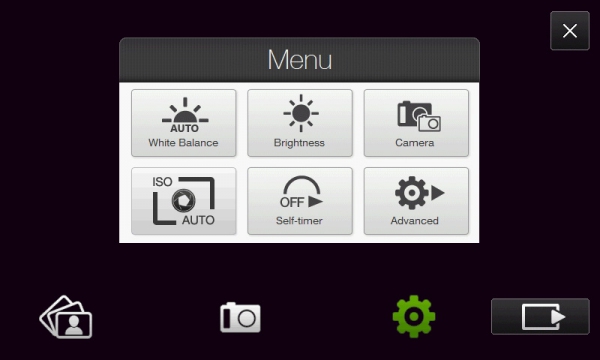
Figure 23: Lots of high end controls for a pretty basic camera.
The Photos and Videos page is very similar to the previous version. You can flick through the pictures in your album, set up a slide show and go into the camera app. Operation of the camera is pretty much standard, with the addition of the autofocus that activates when you press the shutter.
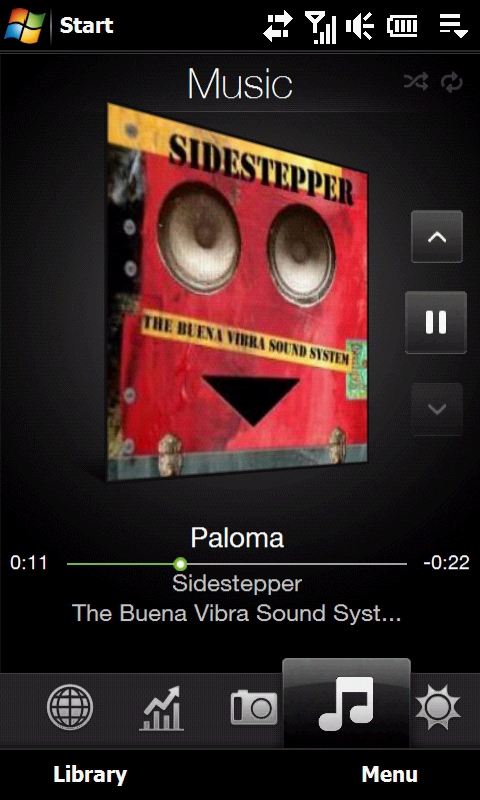
Figure 24: The Music Page... nothing new here.
The Music page appears to be identical, with a "Cover Flow" style method of flicking through album covers. There's a media player built into TouchFlo that plays your chosen music. Or you can use Windows Media Player if you prefer, but it has to be opened through the Start menu.
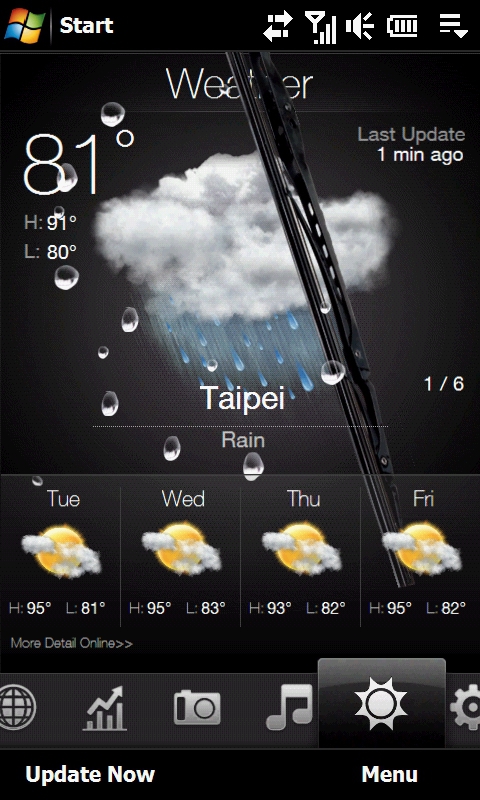
Figure 25: The Weather Page has a slightly revised look, but retains its amusing animations.
The Weather page is slightly different, in that the new version shows the next 4 days' forecast on the main page, while the previous version would switch to a second page to show the same data. Both apps will go to AccuWeather online to provide greater detail.
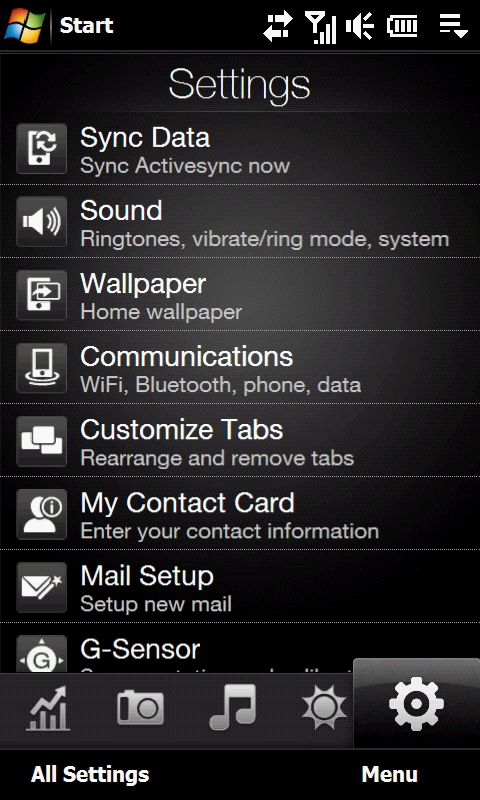
Figure 26: The Settings Page looks pretty much the same, but with more options.
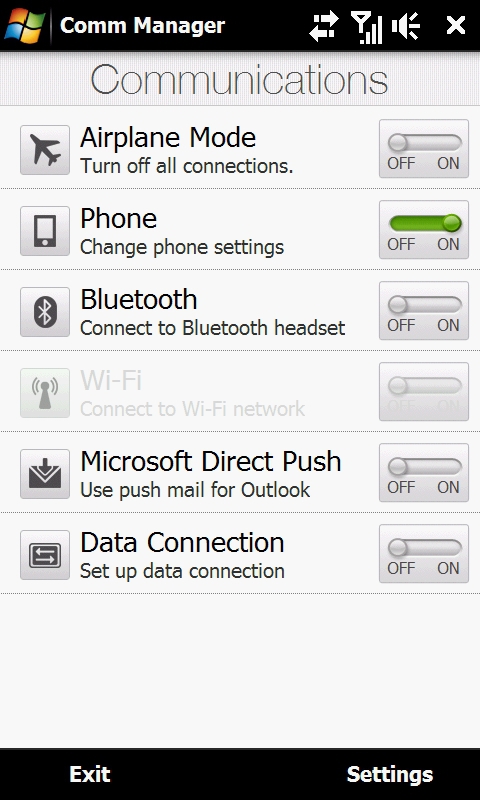
Figure 27: The Communications Settings are carried over as well.
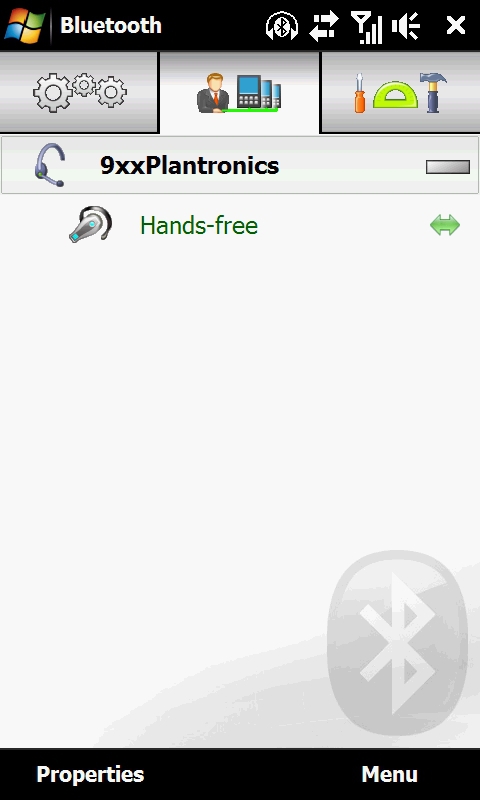
Figure 28: The Bluetooth Settings page is a new and upgraded HTC addition.
The Settings page has more options than before, adding "Customize Tabs", "My Contact Card", "Mail Setup" and "G-Sensor Calibration" to the choices that were previously available. And where the previous version would take you to a WinMo settings page for anything more than the most basic settings (for example, for Communications), a series of TouchFlo tabs handle advanced settings with the new version.
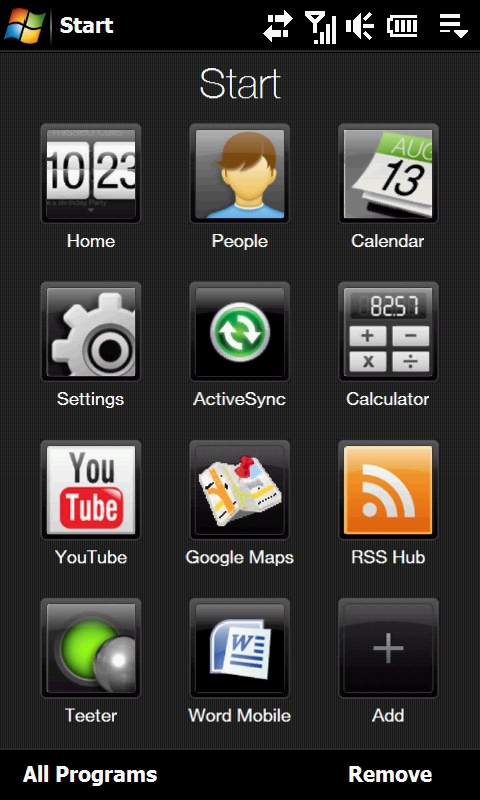
Figure 29: The Start Page replaces the old Start Menu and the old Programs Page.
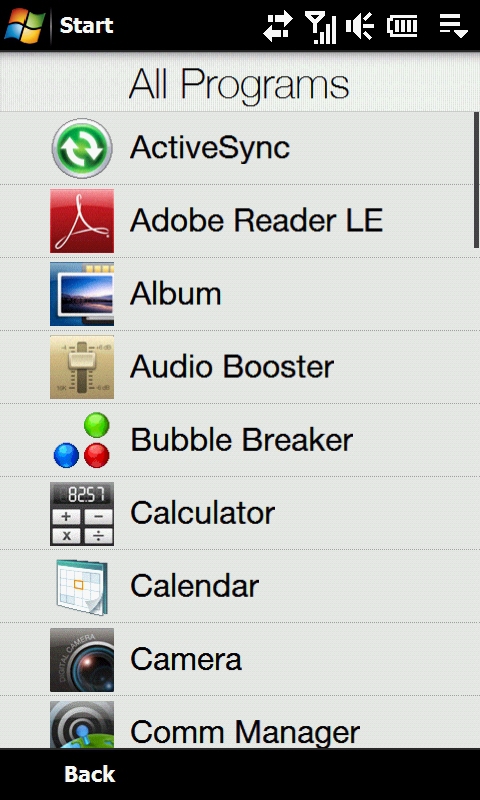
Figure 30: A touch optimized list of all programs.
The Programs page that was part of the previous version is gone, since its functionality is replaced with the Start button. Despite the name change, functionality is largely the same. You can add a total of 30 shortcuts to the Start Menu. If you need to access a less frequently used program that's not on the Start Menu, tap the All Programs menu item and choose from the complete list. One feature from the old Start Menu that's missing on the new one is the Recently Used Program list, which I use all the time.






