


Wednesday, July 1, 2009
I Love It When We're Cruisin' Together - the HTC Touch Cruise Reviewed
Posted by Doug Raeburn in "Pocket PC Hardware" @ 07:00 AM
Making Calls
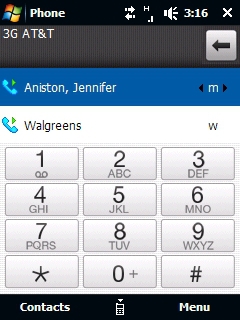
Figure 27: There's a wide range of methods to dial a number.
Yes, I haven't forgotten that despite all of the bells and whistles, this is still first and foremost a phone. Tap on the Phone soft key or the Talk/Send button and the keypad in Figure 27 is displayed. Above the keypad are the last two contacts or numbers dialed. Just tap on one of them to call that contact again. Or tap on the Contacts soft key to go into a contacts listing. Or else (heaven forbid), do it the down and dirty way and actually enter a number on the keypad. If the phone matches the number you're entering to one in your contacts list, it will auto-complete it. If it finds no match, it offers to create a contact with that number.
Another option is using Voice Command, which is accessed by pressing and holding the Talk/Send key. A tone sounds and you speak your command into the phone, such as "Call Mary Smith". If you have multiple phone numbers in your contacts for Mary, the voice will ask you "Call Mary Smith, home, work or mobile?", and you can select the desired number by responding to that question. If you wish to specify which of Mary's numbers you wish to dial directly without being asked to choose among them, you can say "Call Mary Smith mobile". The voice asks you to confirm what it heard you say and you respond "Yes" or "No". With "Yes", the call is dialed.
Voice Command can do much more than voice dialing. It can answer questions like "what time is it?" or "what is my next appointment?". It can also launch applications and control the Media Player. It's a very handy utility. Now if they could just get the voice to sound more like a human and less like the "alien of the week" on Star Trek…
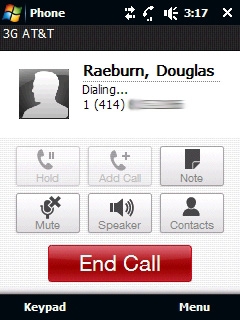
Figure 28: One ringy-dingy, two ringy-dingy...
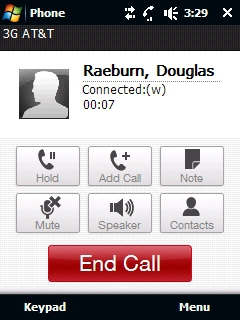
Figure 29: Lots of in-call options...
Figure 28 shows the screen displayed while the call is being dialed, and the screen displayed during the call is shown in Figure 29. It shows the time duration of the call and allows putting the call on hold, adding a call (conferencing), taking a note, muting and switching to speakerphone. A button for Contacts is provided in case you want to look up the number for someone else to conference them in.
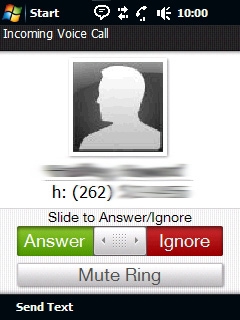
Figure 30: Another feature inspired by the iPhone and nicely executed.
This figure shows the screen displayed when you have an incoming call. I like the "Slide to Answer/Ignore" feature, since that makes it unlikely that you'll press a button by accident when removing the phone from its case, your pocket or purse. You can also elect to send the person a text message if you can't talk at the time they call.
Overall phone performance was very good. Incoming voices were loud and clear, and people who I called reported the same on their end. The speakerphone was one of the better sounding ones that I've used. No complaints at all in this area.






