


Wednesday, July 1, 2009
I Love It When We're Cruisin' Together - the HTC Touch Cruise Reviewed
Posted by Doug Raeburn in "Pocket PC Hardware" @ 07:00 AM
Other TouchFlo Features
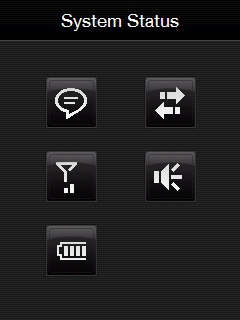
Figure 20: Big status icons are much easier to use than the tiny ones in the title bar.
HTC has made an effort to make using the status icons in the title bar a bit more finger friendly. To access information about the icons, tap on the icon area in the title bar. The screen shown in Figure 13 will be displayed. The large icons on this screen are easy to access with your fingers. But the finger friendliness has its limits. For example, if a notification for an appointment is displayed, you press the large notification icon in the screen above easily with your finger. Then the phone goes on to display a standard Windows Mobile notification message at the bottom of the screen. If you only wish to dismiss the message, there's a soft key for that. But if you wish to do anything else (like put the notification to sleep to remind you again in the future), you have to use the other soft key, which displays a standard WM "stylus sized" menu. Both the Cruise and the Diamond behave in the same way. I've gotten pretty good at choosing a menu item with my fingernail, but often I miss and set the wrong sleep time.
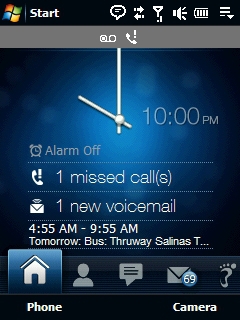
Figure 21: But you can't always avoid the tiny icons.
If multiple notifications are displayed at the same time (such as appointment reminder and new mail), a screen like Figure 21 is displayed, with a gray band toward the top of the screen with a small icon for each notification. You access the notification message by tapping one of the icons, but since they're so small, it's difficult to impossible to do so with your fingertip.
These are just a couple of examples of the fact that, despite their best efforts, there are limits to how much finger friendliness HTC can provide to a mobile OS that doesn't support that concept by design. Their efforts are laudable and, for the most part, TouchFlo is a nice alternative to the standard WM Today Screen, program listings, etc. It's just that even with TouchFlo, eventually you have to deal with bundled WM applications (Outlook Mobile, Word Mobile) and OS widgets (menus, file selectors, etc.) that have their old stylus based design. Sure, some of us who have been Pocket PC advocates from their inception are still comfortable with using the stylus (and some even prefer the stylus to finger operation). But the success and high visibility of the iPhone has made finger friendly touch screens a much sought after feature, and a finger friendly shell placed over a stylus friendly OS can only go so far to compete in that regard. WM 6.5 and 7 will include a much wider array of finger friendly features built in to the OS, which should make them stronger competitors against the iPhone "juggernaut".
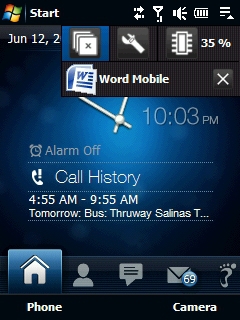
Figure 22: The Quick Menu is mostly finger friendly.
But back to the review. The Cruise comes with a handy little task manager called Quick Menu. It provides a list of currently running programs, allowing switching between them, closing a program and closing all currently running programs. An icon at the top of the menu shows the percentage of program memory in use and tapping that icon takes you to the standard WM memory settings page. Its large icons make it another finger friendly component of TouchFlo. Too bad you have to tap on a small icon in the title bar to open it.
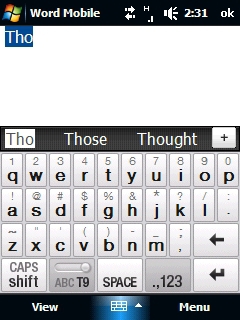
Figure 23: This touch friendly QWERTY keyboard is bundled with the Cruise. Nicely designed, but challenging to use on a 2.8" screen. The standard WM input methods are also included.
Of course, no touch enabled phone would be complete without an onscreen keyboard that allows you to type with your fingers. HTC provides 3 varieties: the Full QWERTY, the Compact QWERTY and the Phone Keypad. The Full QWERTY is shown in Figure 23. It works much like any QWERTY keyboard, but with large keys intended for typing with your fingers. All of these keyboards rely heavily on T9 word prediction to make the input less tedious. The suggested words appear in the dark band just above the top row of keys, with the "most likely" suggestion highlighted and shown on the screen. When your actual choice is highlighted in that way, you can tap on SPACE or the period to accept the word, without having to type it out completely. You must tap the shift key for uppercase (no sliding shortcuts as with other input methods) and caps lock is accessed by tapping that key twice. Tap and hold the key to enter the symbol above the character.
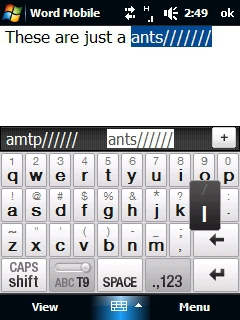
Figure 24: This attempt at feedback mimics the iPhone, but is less successful.
When you press a key, an image of the key, expanded and in reverse colors is displayed, as shown in figure 24 (the string of slashes is the result of the keyboard's VERY fast auto-repeat while I fumbled with capturing the screen). Unfortunately, the image is often largely blocked by your fingers, so it doesn't help all that much. The keyboard on the iPhone (along with that of TouchPal, my personal favorite for WM) has a similar image that displays above the key pressed, making it much more easily seen. Such feedback is important, especially with the Full QWERTY keyboard, which ends up with keys a bit too small for accuracy when displayed on a 2.8" screen.
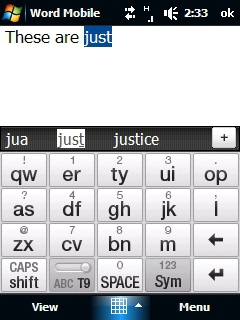
Figure 25: My favorite keyboard style on a phone like this. Much bigger keys give you much better accuracy.
A better solution for accurate key presses is the Compact QWERTY. It displays the characters in a standard QWERTY layout, but with 2 characters per key. That allows for larger keys in the small space of the screen that are easier to hit with your fingers. The T9 word prediction/correction is key to the use of this keyboard, since you're not entering single characters here. Fortunately, the T9 is very well designed and good at prediction. Everything else works the same as described above for the Full QWERTY.
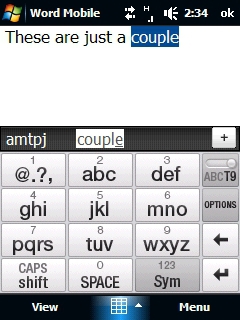
Figure 26: Another larger key solution and a good choice for someone making the transition from a conventional cell phone to a "smart" phone.
And in a nod to all of the teens who became so proficient at inputting text messages with a 9 key keypad on a regular cell phone, HTC provides the Phone Keypad. Just like with the text messaging, it can be set for multi-press mode (press the ABC key once for a, twice for b and 3 times for c) or in T9 mode (hit the ABC key once for c, enter more characters in the same manner and let T9 make sense of the word). This keyboard is recommended for one handed text input… you can hold the phone in your hand and type with your thumb.These keyboards are nice enough as bundled utilities, but if you have a WM touch enabled phone, I recommend you check out TouchPal. It's inexpensive, includes versions of all of the keyboards shown above and has a multitude of features that make it much easier to use than the bundled keyboards, IMO.






