


Wednesday, July 1, 2009
I Love It When We're Cruisin' Together - the HTC Touch Cruise Reviewed
Posted by Doug Raeburn in "Pocket PC Hardware" @ 07:00 AM
Going With the Flo - continued:
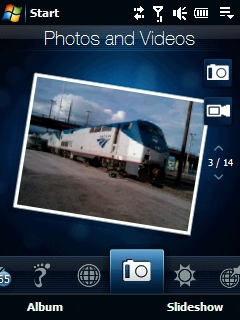
Figure 14: Picture perfect? Well, not quite.
Photos and Videos is the next TouchFlo page. As you might expect, this page allows you to go through your photos and stills of your videos. You move forward and backward through the photos by flicking your thumb up or down. In addition, you can start either of the cameras with onscreen icons, look at photo albums and start slideshows. Once again, the functionality here is identical to that of the Diamond. The only observation regarding the Cruise is that flipping from photo to photo seems noticeably slower than on the Diamond. I'll have more information about the cameras and image quality later in this review.
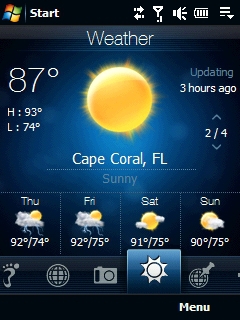
Figure 15: Better pack some sunscreen...
The Weather page allows you to designate a number of cities for which you can get real time weather conditions and forecasts. The display shows current conditions and forecasts for the next 4 days. You move from one city to the next by using the flicking motion. This is similar to the Diamond's Weather page, but the Diamond doesn't show the additional day's forecast on the Weather page… there's a 5-day soft key that displays them. One minor downside on both units is a somewhat sparse set of cities from which to choose. Among others, I monitor my home weather and the weather at my sister's home in Florida. But in both cases, I had to choose larger cities nearby, rather than the actual cities in which we live. If you're determined enough, more cities can be added, but it's a rather convoluted process involving registry editing, so I don't recommend it to anyone who's not entirely comfortable with that prospect.
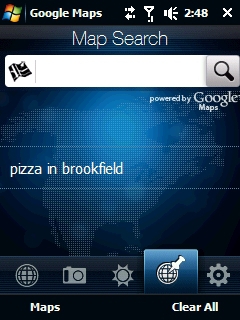
Figure 16: A fancy front end for Google Maps.
Next you'll find the Map Search page. This is really just an alternate means of using Google Maps, so it adds only the utility of not having to fire up the Google Maps application yourself. Diamond neither has it nor needs it.
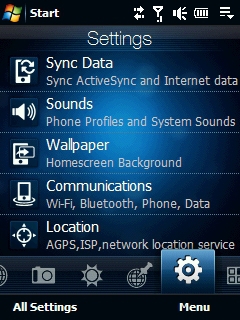
Figure 17: Convenient access to your settings... Communications is the heavy hitter for me.
Then we have the Settings page. This gives you a convenient (and largely finger friendly) way of accessing commonly used settings. I use it mostly for the Communications page, which accesses controls for Bluetooth and Wi-Fi. The All Settings soft key takes you to the standard WM settings pages. Diamond's page is similar, with slightly different selections.
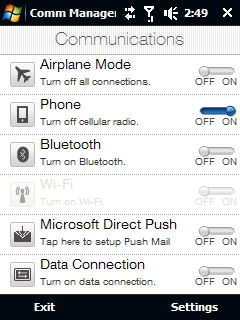
Figure 18: "Finger friendly" settings on the Touch Cruise.
Figure 18 shows the page displayed when you tap on Communications on the screen in Figure 17.
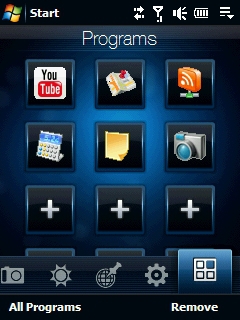
Figure 19: Give your Cruise the "iPhone look".
Finally, we have the Programs page, which is a simple launcher. You can add and remove icons for your applications as you prefer. Although this page resembles the iPhone launcher that is so familiar these days, it actually has only 1 page providing 15 icons, while iPhone offers multiple pages that scroll horizontally. Between Cruise and Diamond, the main page looks identical, and only the page from which you select applications to add looks different. Both are finger friendly, but Cruise's is easier to navigate without making an unintended selection.






