


Wednesday, January 14, 2009
The Professional Touch...a Review of HTC's Touch Pro (aka AT&T Fuze)
Posted by Don Tolson in "Pocket PC Hardware" @ 09:00 AM
For those of you who haven't heard about TouchFlo 3D, it's an application/OS overlay developed by HTC to bring some more of the iPhone touch/gesture capability to the Windows Mobile platform. On the surface, it provides a gesture-based Today screen replacement which lets you swipe, flick and tap your way through the major functions of the device -- phone calls, emails, multimedia, weather, camera, and applications. But HTC has gone much further than that with this version. A lot of thought has obviously gone into the intuitiveness of the interface from both a hardware and software point of view and how they work together. In working with TouchFlo 3D for a couple of weeks, I was very pleasantly surprised to see it doing just what I'd kind of what of expected it to, without really thinking about it.
For instance, the stylus is held in magnetically, rather than by friction fit. When you pull the stylus out of the unit, the Touch Pro is automatically turned on, unlocked, and set to the Today screen, regardless of how you left the unit.
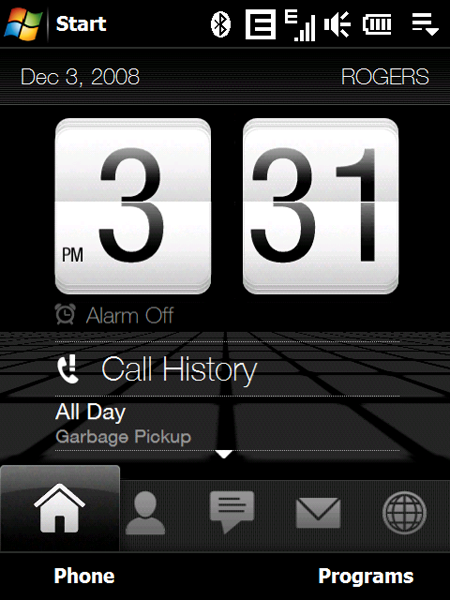
Figure 11: The Today screen of the TouchFlo 3D interface. Almost everything is active on this screen, from a touch point of view. Tapping on any one of the icons along the bottom will take you to Contacts, Messages, Mail, Internet, and other functions. Or you can touch and drag across the screen to scroll through the entries. Sweeping across the middle of the screen will move you from function to function and flicking up over the clock will present a smaller digital one with more entries from the calendar.
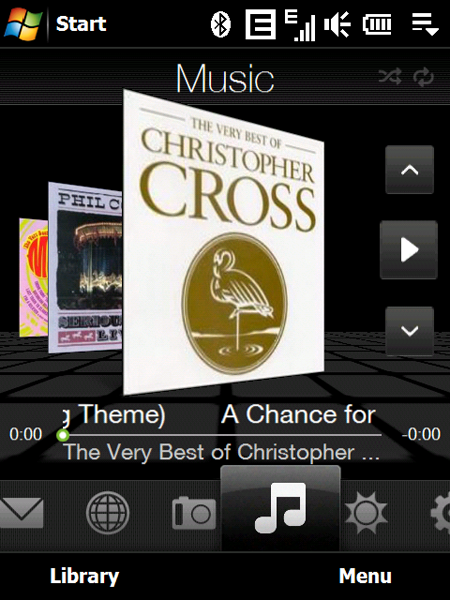
Figure 12: This is HTC's Album interface for playing music (MP3, WMA, OGG, etc.). Again, it has been touch enabled, so you can flick through the albums/songs using the album art or the up/down arrows at the right side. HTC Album doesn't seem to automatically pick up new album art on main screen (Now Playing) until you actually go into the directory with the music and start playing the music files. It does pick up the music files in the Library, though.
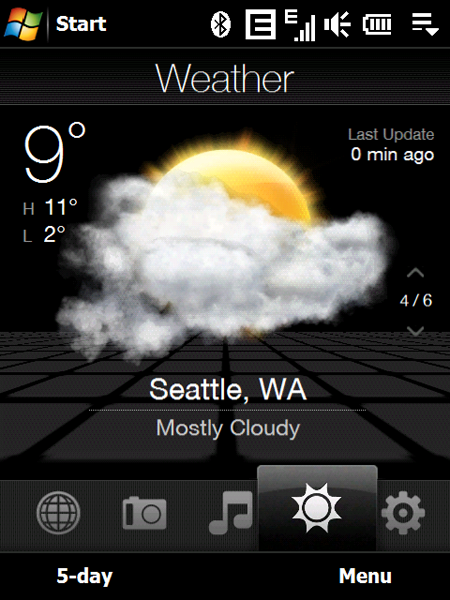
Figure 13: The weather page comes pre-loaded with six cities from all over the world. You can easily remove these and add your own special travel destinations to get instant updates on the local weather. In the lower left, you can also see the 5-day outlook.
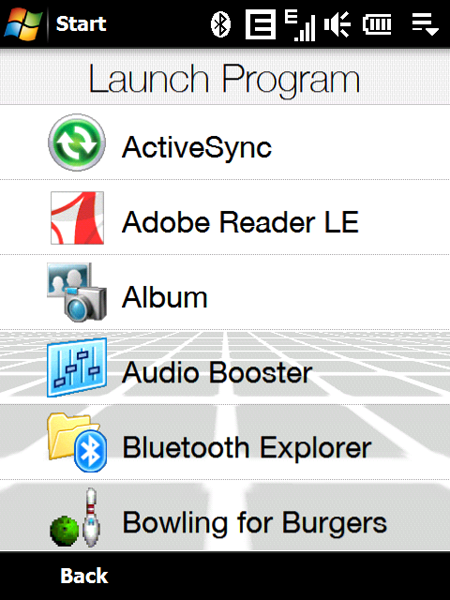
Figure 14: Here's a shot of the screen for selecting and launching Programs. It's not all that interesting visually, but, as with all lists under TouchFlo 3D, you move through the list by dragging your finger up and down the screen. You can also 'flick' up and down to have the list roll on its own. The really neat part of this scrolling is that it incorporates 'inertia' in that it will move quickly after the initial flick, then slow down after a screenful or so, just as if the entries were on a large Price is Right kind of wheel.
Integration of the hardware and software also happens with the keyboard. When it is extended, the unit automatically powers on into Landscape mode. The difference here though is that you are taken to HTC's Quick Menu, rather than a landscape version of Touchflo 3D.
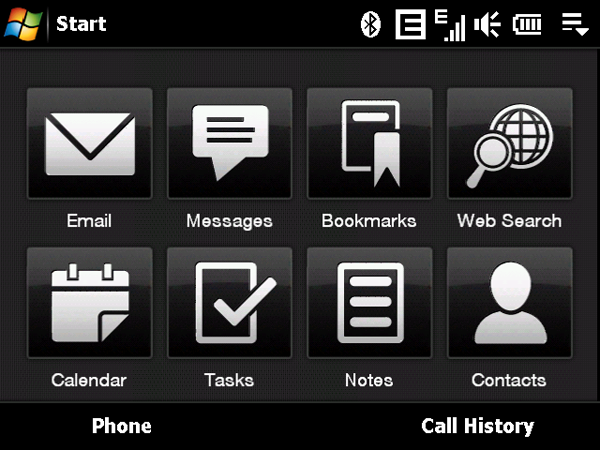
Figure 15: HTC's QuickMenu, which is displayed when you open the keyboard. From what I understand from XDA Developers, HTC (and they) haven't been able to get TouchFlo to work in landscape mode, so it makes sense that this screen would be provided as a substitute.






